What can the HowBridge Mac App do? How do you download it, and which Mac do you need?
What does the HowBridge Mac App do, and how do I download it?
The HowBridge Mac App is free. Search for "好運器" or "HowBridge" on the Mac App Store to download it. It needs macOS 15.0 or later. It installs on both Apple silicon and Intel Macs, and it is the same app and the same account as the iPhone and iPad version. The 5 sidebar sections let you forecast parcels, create consolidations, look up import tariffs without signing in, and view and pay bills.
This guide covers only the HowBridge Mac App (the version on the Mac App Store): how to download it, what it can do, and how it differs from the iPhone version. For iPhone and iPad features, push notifications and Live Activities on the Lock Screen, see the HowBridge iPhone / iPad App guide. HowBridge provides China (mainland) → Taiwan consolidation shipping (Shenzhen consolidation warehouse and Taoyuan Dayuan operations warehouse), and the app and website share the same member data and consolidation rules.
How do I download the HowBridge Mac App? Which Mac do I need?
The HowBridge Mac App is available only on the Mac App Store and is free to download. The table below lists the requirements shown on the Mac App Store product page and in Apple Support documents:
| Item | Details | Notes |
|---|---|---|
| System requirements | macOS 15.0 or later | Choose Apple menu > "About This Mac" in the top-left corner of the screen to see your macOS version |
| Processor | Apple silicon or Intel | The installer contains both architectures; whether it installs depends only on your macOS version |
| Price | Free | No subscription in the app; consolidation shipping fees and taxes are charged separately under the website's rules |
| Relationship to iPhone and iPad | One App Store product | Once you get (download) it, the same Apple Account can get it on Mac, iPhone and iPad |
| Account | Shared with the website and the iPhone app | Sign in with your existing HowBridge account; parcels, consolidation orders and bills stay in sync |
| Category and age rating | Shopping; 4+ | As shown on the Mac App Store product page |
| Interface languages | 14 | Traditional Chinese, English, Japanese, Korean, Vietnamese, Indonesian, Malay, Thai, Hindi, German, French, Portuguese, Spanish, Russian |
1Open the Mac App Store
Open the App Store from the Dock or the Applications folder on your Mac, and sign in with your Apple Account.
2Search for HowBridge
Type "好運器" or "HowBridge" in the search field in the top-left corner, or go straight to the HowBridge page on the Mac App Store.
3Click "Get" to install
For a free app, click "Get" to start the download; if the button changes to "Install", click it again. You may be asked to confirm your Apple Account. If you downloaded it on iPhone before, you can also find it among your purchased apps on your App Store account page and click the cloud icon to download it again.
4Sign in with your HowBridge account
Open the app and click "Me" in the sidebar to sign in. Your account is the same as on the website and the iPhone app, and your data syncs automatically after you sign in.
Yes, as long as the Mac can run macOS 15 or later. According to Apple Support, macOS Sequoia 15 still supports some Intel models, such as MacBook Pro and Mac mini from 2018 or later and iMac from 2019 or later; the latest macOS 27 supports only Apple silicon. The HowBridge Mac App itself supports both processor types.
The Mac App Store labels iPhone apps that run directly on Apple silicon Macs as "Designed for iPhone". HowBridge has its own macOS version with a Mac-style sidebar and menu bar, and it also works on Intel Macs.
What does each of the 5 sidebar sections in the Mac App do?
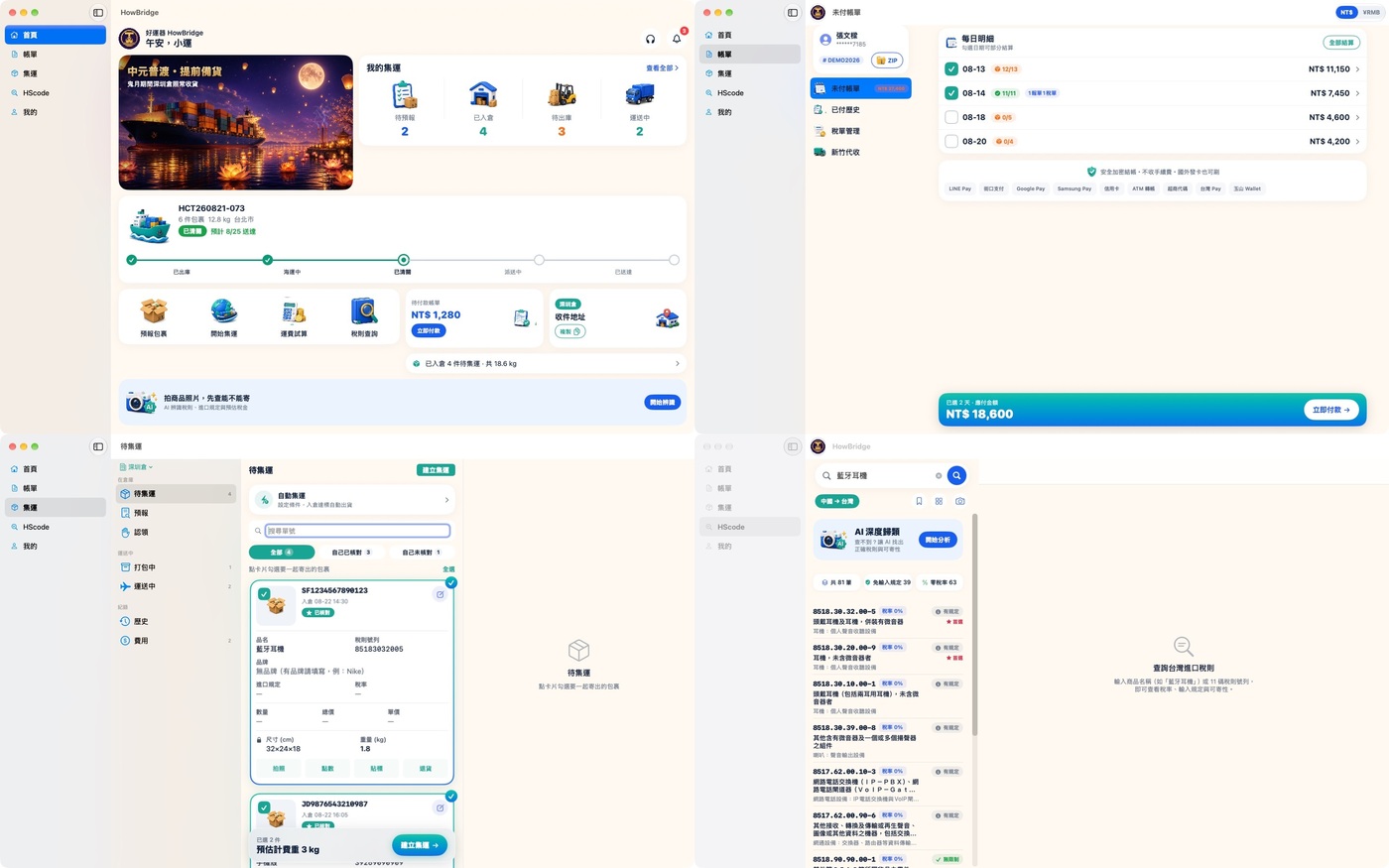
The Mac version turns the 5 tabs at the bottom of the iPhone app into a sidebar on the left. The minimum window size is 1200×720, and you can expand it to full screen:
| Sidebar | What you can do | Sign-in required? |
|---|---|---|
| Home | See "My consolidations" counts (To forecast, In warehouse, To dispatch, In transit), a parcel tracking timeline, unpaid bills and work orders, and copy the Shenzhen warehouse address (with your personal warehouse code). The bell in the top-right corner opens the notification center, and the headset icon connects you to LINE support | Yes |
| Bills | 4 categories: "Unpaid bills", "Paid history", "Tax documents" and "HCT collection"; you can preview and save documents | Yes |
| Consolidation | 7 tabs: "To consolidate", "Packing", "In transit", "Forecast", "Claim", "History" and "Fees"; create consolidations and forecast parcels | Yes |
| HScode | Look up Taiwan import duty rates, import regulations and whether an item can be shipped, by product name or 11-digit tariff code; search by image, or use "AI deep classification" | No |
| Me | Sign in, manage declarants and recipients, "Saved tariffs", customs documents, "Account security", language, and the points center | Yes |
The Mac version does not currently follow the system's Dark Mode. Even if your Mac is set to dark, the app is shown in light mode.
What keyboard shortcuts does the Mac version have?
The menu bar has Mac-only commands, so you can reach common features without using the mouse:
| Shortcut | Action | Menu |
|---|---|---|
| ⌘1 to ⌘5 | Switch between Home, Bills, Consolidation, HScode and Me | View |
| ⌘N | "Create consolidation" | File |
| ⌘⇧N | "New forecast" | File |
| ⌘⇧V | "Forecast from Clipboard" (reads the tracking number you copied) | Edit |
| ⌘F | "Tariffs" (tariff search) | View |
| ⌘R | "Refresh" the current screen | View |
| (no shortcut) | "Search Tariffs with Clipboard" | Edit |
| (no shortcut) | Change the app language | App menu > "Language…" |
The Mac version does not watch your clipboard in the background. It reads what you just copied only when you press ⌘⇧V or choose "Search Tariffs with Clipboard". If no tracking number is found, it tells you instead of guessing.
Press ⌘Space to open Spotlight and search for "Forecast parcel", "Track consolidation status", "Search import tariffs" or "View bills" to jump straight to the matching screen in HowBridge.
How do I forecast a parcel on a Mac? Can I take photos with my iPhone?
Yes. A forecast tells HowBridge in advance that a parcel is on its way to the Shenzhen warehouse. The Mac version offers 4 ways to do it:

- Paste a tracking number: Copy the tracking number on Taobao, 1688, Pinduoduo or another platform, go back to HowBridge and press ⌘⇧V. The number is filled into the forecast automatically.
- Drag and drop screenshots: Drag screenshots of order or tracking pages, or a whole ZIP file, into the forecast window, and the system reads the tracking numbers in the images.
- Choose files or photos: Pick images or ZIP files in Finder, or choose from Photos; up to 200 images at a time.
- Take Photo with iPhone: Using Apple's Continuity Camera, choose "Take Photo with iPhone" on your Mac, pick up your iPhone and photograph the shipping label. The photo appears directly on your Mac.
The Mac version does not ask for camera permission and cannot take photos with the Mac's built-in camera; to take a photo, use "Take Photo with iPhone". This requires your iPhone and Mac to be signed in to the same Apple Account, with Wi‑Fi and Bluetooth turned on.
Images are uploaded to the HowBridge server to read the tracking numbers. According to the note in the app, images are used only to find tracking numbers and are not kept after recognition.
How do I create a consolidation on a Mac? Are the rules the same as on the website?
The rules are exactly the same as on the website, because the app and website share the same member data and consolidation rules. On a Mac, press ⌘N or click "Consolidate" on Home to create one:
1Check that your parcels have arrived at the warehouse
Once a parcel reaches the Shenzhen warehouse, it appears in the "To consolidate" tab under "Consolidation"; parcels that have not arrived yet are in the "Forecast" tab. If you cannot find your parcel, check the "Claim" tab.
2Select the parcels to ship together
Select parcels in "To consolidate". The bottom of the screen shows the number of parcels and the estimated chargeable weight. Then click "Create consolidation".
3Choose the delivery method and recipient
Choose home delivery or convenience-store pickup, and enter or select a saved recipient and declarant.
4Check the fees and submit
After you submit, track progress in "Packing" and "In transit". The bill appears under "Bills" after shipping.
"Estimate" on Home gives you a shipping estimate for Sea express and air. For full rates, see HowBridge pricing. For Sea (LCL, quoted case by case), ask customer service for a quote based on your goods.
How do I use HScode tariff search on a Mac? Can I use it without signing in?
Yes. HScode is the only feature in the Mac version that works without signing in, which makes it handy for checking whether an item can be imported and how much tax to expect before you ship:
- Enter a product name (for example, "Bluetooth earbuds") or an 11-digit CCC code (Taiwan 11-digit tariff code). The results show the Taiwan import duty rate, import regulations and whether it can be shipped.
- Search by image: drag a product photo into the window, press ⌘V to paste it, or take a photo with your iPhone, and AI suggests possible tariff codes.
- If you do not understand a result, use "AI deep classification" to have the system explain its reasoning.
- The only lookup direction is China (mainland) → Taiwan, the same as HowBridge's service route.
- You can add codes you use often to "Saved tariffs" (saving and forecasting directly from a tariff card require signing in).
Tariff results in the app and on the website help you estimate; the actual tariff classification and tax amount are as assessed by customs. To learn how to read a code, see CCC codes explained.
How do I read my bills? Can I pay on a Mac?
Yes. The "Bills" sidebar section has 4 categories:
| Bill category | Contents |
|---|---|
| Unpaid bills | Shipping fees and taxes not yet paid; you can select by date and pay several together |
| Paid history | Records of bills you have paid |
| Tax documents | Import tax bills and related documents; you can preview and save them in the app, or use "Show in Finder" |
| HCT collection | Bills collected at your door by HCT Logistics |
- When you click "Pay now", the Mac version opens the HowBridge website checkout inside the app to complete payment. The available payment methods are whatever the checkout shows at the time.
- If you choose JKO Pay, a browser opens for payment; switch back to the app when you are done and the bill refreshes automatically.
For now, please pay from the bills page in the iPhone app; the Mac version mainly uses the website checkout opened inside the app.
How can I sign in on the Mac version? How do I set up account security?
Sign-in options are the same as in the iPhone app and on the website:
- Email or mobile number + password, or sign in with a verification code instead.
- Social sign-in: Apple, Google, LINE, Facebook, TikTok and Alipay, completed in an authorization window opened inside the app.
- Account security ("Me" > "Account security"): two-factor authentication, trusted devices, linked social accounts, and changing your password.
- Delete account: you can request it directly in the app, with no need to send an email.
Will the Mac version notify me when my parcel arrives?
On the Mac version, use the in-app notification center (the bell in the top-right corner of Home) to see notifications about warehouse arrival, shipping, bills and more. To get real-time notifications on your phone, use it together with:
- The HowBridge iPhone app: push notifications and Live Activities on the Lock Screen.
- The HowBridge LINE Official Account: once linked, LINE sends you shipment status updates.
- If notifications are not arriving, see the app notification troubleshooting guide.
How is the Mac version different from the iPhone version?
Both versions share the same account and most features; the main difference is how you use them:
| Item | iPhone / iPad | Mac |
|---|---|---|
| Interface | Tabs at the bottom (sidebar available on iPad) | Sidebar on the left + menu bar shortcuts |
| Photographing labels and products | Uses the phone's camera directly | "Take Photo with iPhone", or drag and drop or paste screenshots |
| Tracking numbers on the clipboard | Prompts you when a tracking number is detected | Read only when you press ⌘⇧V |
| Notifications | Push, Live Activities on the Lock Screen, widgets | In-app notification center |
| Apple Wallet member card | Add to Wallet directly | Send it to your iPhone via QR code or AirDrop to add it |
| Payment | Pay on the bills page (including Apple Pay) | Website checkout opened inside the app |
| Quick sign-in | Face ID | Sign in with account and password, a verification code or a social account |
What data does the Mac version access? Is it safe?
Every app on the Mac App Store must run inside Apple's App Sandbox. Based on the permission settings of the released build and the privacy label on the product page:
- Outgoing connections only: the app can only connect out to the internet; it cannot act as a server and accept incoming connections.
- Only the files you choose: it can read and write only files you give it through an open or save dialog, or by drag and drop.
- No camera or photo library permission: photos are chosen with the system photo picker, and the app receives only the ones you select.
- No tracking: the privacy label states that the app does not track you. Data linked to you consists of purchases, contact info, user content and identifiers, all used for app functionality.
- Updates only through the Mac App Store: under App Review Guideline 2.4.5, Mac App Store apps must run in the sandbox and can be updated only through the Mac App Store.
Under Article 8 of Taiwan's Personal Data Protection Act, the purpose of collection and the categories of data must be disclosed when personal data is collected. For how HowBridge collects and uses personal data, see the Privacy Policy.
What are the current limitations of the Mac version?
This list reflects the Mac App Store version as of 2026-10-16 and will be revised as new versions are released:
- No widgets, Live Activities on the Lock Screen, or Handoff.
- You cannot take photos with the Mac's own camera; use "Take Photo with iPhone" instead.
- Bill payment is completed in the website checkout opened inside the app, not in a native app screen.
- The interface is always light and does not follow the system's Dark Mode.
- For real-time push notifications, use the iPhone app or the LINE Official Account as well.
What does research say about handling online shopping and logistics on a computer?
The studies below provide background. None of them were conducted on HowBridge or on consolidation shipping apps; they only describe general user behavior:
- Computers are still common for going online: The Ministry of Digital Affairs (moda) 2025 (ROC year 114) Digital Access Sub-survey found that, among internet users aged 12 and over in Taiwan, 98 in every 100 go online with a phone, 39 with a laptop and 35 with a desktop; in that year's main survey, 69.3% of internet users had shopped online (including ordering food, hailing rides and booking rooms).
- Browse on the phone, order on the computer: de Haan et al. (2018) analyzed clickstream data from a large online retailer and found that conversion rates were significantly higher when customers switched from a smartphone to a desktop; the gap grew with higher prices and higher risk. Xu et al. (2017), using Alibaba data, also found that browsing across devices improved sales results.
- Filling in forms is slower on a phone: Couper and Peterson (2017) found that web forms take longer on a phone than on a computer; only about one fifth of the difference came from network speed, and most of it came from the constant scrolling a small screen requires.
- Seeing the work being done reassures customers: In five experiments, Buell and Norton (2011) found that when a website shows users the work in progress, users even prefer a site that takes longer. Rao et al. (2011) found that loyal customers order less often and spend less after an order delay.
- Cross-device sign-in needs clear explanation: In a study of 87 people, Würsching et al. (2023) found a median usability score of 95 for biometric sign-in on phones, but participants most often got stuck on "not knowing how to sign in to the same account on a computer or laptop".
- The situation in Taiwan: Liu Hui-Chuan (2022, National Chengchi University EMBA master's thesis) cites a survey by the Institute for Information Industry showing that Taobao/Tmall is the top cross-border shopping site in Taiwan, with a 19% share; Hsu Chin-Yi (2017, Tamkang University master's thesis) found that Taiwanese consumers' perceived risk of cross-border platforms affects their intention to use them through "satisfaction" and "trust".
What are the common terms in the HowBridge Mac App?
- Mac App Store
- Apple's official app store on Mac. The HowBridge Mac App is available only here.
- Apple silicon
- Mac processors designed by Apple (such as the M series), which have been replacing Intel processors since 2020.
- Universal Purchase
- One App Store product that offers iPhone, iPad and Mac versions together; download it once and the same Apple Account can get it on every device.
- Continuity Camera
- An Apple feature that lets you choose "Take Photo with iPhone" on a Mac, so a photo or scan taken with your iPhone appears directly on the Mac.
- App Sandbox
- A restriction that Mac App Store apps must follow: the app can access only permitted resources, such as files you choose yourself.
- Forecast
- Registering a tracking number with HowBridge before the parcel reaches the Shenzhen warehouse (also called a pre-alert), so it is matched to your account automatically when it arrives.
- Warehouse code
- A member-specific code included in the Shenzhen warehouse address; the warehouse uses it to identify whose parcel it is.
- CCC code
- The 11-digit code in Taiwan's customs import tariff (Taiwan 11-digit tariff code) that determines duty rates and import regulations; the first 6 digits are the internationally shared HS code.
What sources were used, and what was checked?
The sources below were consulted on 2026-10-16. Document dates and access dates are shown separately; where no date is stated, none has been added.
Government and official primary sources
- Apple Support (Taiwan): macOS Sequoia is compatible with these computers | Document date: 2025-09-15; lists the Mac models that can install it ("requires macOS 15.0 or later"), including some 2018–2020 Intel models.
- Apple Support (Taiwan): macOS 27 Golden Gate is compatible with these computers | Document date: 2026-09-14; shows that the latest macOS supports only Apple silicon Macs, so readers can tell whether they can upgrade.
- Apple Support (Taiwan): Find out which macOS your Mac is using | Document date: 2026-09-28; shows readers how to check their macOS version and lists the latest versions, 27.0.1 and Sequoia 15.8.1.
- Apple Support (Taiwan): Get apps and Safari extensions in the App Store on Mac | Document date: not stated; supports the Mac App Store download steps (search → open the product page → click Get).
- Apple Support (Taiwan): View and redownload purchased apps | Document date: not stated; explains how to find an app among your purchases on your App Store account page and download it again.
- Apple Developer: App Store Connect Help — Add platforms (Universal Purchase) | Document date: not stated; supports that the Mac and iPhone/iPad versions are one App Store product, obtained once for multiple platforms.
- Apple Developer: App Sandbox documentation | Document date: not stated; supports the security note that Mac App Store apps must enable the sandbox.
- Apple Developer: App Store Review Guideline 2.4.5 | Document date: 2026-06-08; supports that Mac App Store apps must be sandboxed, may not request root, and can be updated only through the Mac App Store.
- Apple Support (Taiwan): Safely open apps on your Mac | Document date: 2026-06-01; supports that App Store apps are reviewed and signed by Apple and protected by Gatekeeper.
- Apple Support (Taiwan): Continuity Camera: Use your iPhone or iPad to scan documents or take a picture on Mac | Document date: 2026-03-17; explains how to take a photo or scan with an iPhone and insert it directly on a Mac.
- Ministry of Digital Affairs (moda): 2025 (ROC year 114) Digital Access Survey report and summary | Document date: 2026-01-13; official figures: online shopping (including food orders, ride-hailing and room bookings) 69.3%, mobile payment among internet users 51.0%.
- Ministry of Digital Affairs (moda): 2025 (ROC year 114) Digital Access Sub-survey report and summary | Document date: 2026-01-13; official figures: 39 in every 100 internet users go online with a laptop and 35 with a desktop, used as background on demand for a Mac version.
- Ministry of Justice Laws & Regulations Database: Personal Data Protection Act, Article 8 | Document date: 2025-11-11; the duty to inform when an app collects personal data, matching the disclosures in the HowBridge Privacy Policy.
Research literature
Device Switching in Online Purchasing: Examining the Strategic Contingencies
Conversion rates were significantly higher when customers switched from phone to desktop, and the effect grew with higher prices and higher risk. Supports the cross-device journey of browsing on a phone and handling orders on a computer.
Battle of the Channels: The Impact of Tablets on Digital Commerce
Using Alibaba data, found that tablets added about US$923,500,000 a year to the e-commerce market and that browsing across devices improves sales results. Supports the value of continuing with one account across devices.
How Is the Mobile Internet Different? Search Costs and Local Activities
Phone screens are small and search costs are higher, so the top links get clicked disproportionately. Supports the point that comparing prices and reviewing multiple orders suit a larger screen.
Why Do Web Surveys Take Longer on Smartphones?
Filling in forms is slower on a phone than on a PC; only about one fifth of the time difference comes from network transmission, and most comes from extra scrolling on a small screen. Supports the point that entering recipient and declaration details is easier on a computer.
Mobile App Introduction and Online and Offline Purchases and Product Returns
App adopters bought 33% more often, bought 34% more items and spent 37% more; returns also rose, with net spending up 36%. Supports the idea that a dedicated app and notifications increase engagement.
The Labor Illusion: How Operational Transparency Increases Perceived Value
Five experiments showed that when a website shows users the work being done, users even prefer a site that takes longer. Supports the value of a tracking timeline that shows progress step by step.
Electronic Logistics Service Quality (e-LSQ): Its Impact on the Customer's Purchase Satisfaction and Retention
Data from 260 online retailers showed that delivery quality and satisfaction with cost were positively related to purchase satisfaction and customer retention. Supports the idea that the logistics and tracking experience affects repeat purchases.
Failure to deliver? Linking online order fulfillment glitches with future purchase behavior
After an order delay, loyal customers ordered less often and spent less. Supports keeping members able to check shipment status at any time (the in-app notification center on Mac, or real-time alerts via the iPhone app or LINE).
FIDO2 the Rescue? Platform vs. Roaming Authentication on Smartphones
In an experiment with N=87, passwordless biometric sign-in on phones had a median SUS score of 95, but the main weakness was not knowing how to sign in to the same account on a computer or laptop. Supports explaining cross-device sign-in between phone and Mac clearly.
Progressive Web Apps: The Possible Web-native Unifier for Mobile Development
The PWA install size was only 104KB (about 1/157 of the React Native version), but it took 3152ms from tapping the icon to the screen appearing, versus 862ms for React Native. Supports the trade-off between a lightweight web app and a faster native app.
跨境電商場景體驗研究:以天貓淘寶海外市場為例
Taiwan-specific: the thesis cites a 2021 survey by MIC (Institute for Information Industry) showing Taobao/Tmall as the top cross-border shopping site in Taiwan with a 19% share, and breaks down the obstacles before, during and after cross-border purchases.
台灣消費者對跨境電商平台知覺風險之研究
Taiwan-specific: performance risk and privacy risk affect the intention to use cross-border e-commerce through satisfaction and trust. Supports the idea that transparent tracking and secure sign-in lower the perceived risk of cross-border online shopping.
Feature descriptions are based on the 2026-10-16 Mac App Store build, the permission settings in the released files and the Mac App Store product page; Apple system requirements follow Apple Support documents. A new Mac version is in review and may add features once released; this page will be updated. Siri and Shortcuts app actions and quick sign-in have not yet been tested on a device with the released version, so they are not covered. None of the studies cited were conducted on HowBridge.
What are common questions about the HowBridge Mac App?
Does HowBridge have a Mac app?
Does the HowBridge Mac App cost anything?
My Mac has an Intel processor. Can I use it?
What if I can't find HowBridge on the Mac App Store?
Do I need separate accounts for the Mac and iPhone versions?
How do I forecast a parcel on a Mac?
Can the Mac version use the computer's camera to photograph a shipping label?
Can I look up tariffs without signing in?
Can I pay on the Mac version?
Does the Mac version send push notifications?
What keyboard shortcuts does the Mac version have?
Further reading
Manage your consolidation shipping on a Mac: download HowBridge
Download it free on the Mac App Store and sign in with your existing HowBridge account to get started.
Download on the Mac App Store