What can the HowBridge app do on iPhone and iPad? How do I download it and set up notifications?
Quick answer: what does the HowBridge app do and how do I download it?
The HowBridge app is published by HowBridge Information Co., Ltd. (shown on the App Store as Hao Yun Ci Information Limited Company). It is a free download on the App Store, requires iOS 18.0/iPadOS 18.0 or later, and the same app supports both iPhone and iPad with an interface in 14 languages; the Android version is available separately on Google Play. The app has five tabs: Home (shipment overview, four quick actions, one-tap copy of the Shenzhen warehouse address), Bills (unpaid/paid/tax bills/HCT collection, with in-app payment), Shipments (forecast, tick parcels to create a shipment, claim, history), HScode (tariff search without logging in, AI classification, freight estimate) and Me (declarants/recipients, customs documents, account security, language). Once you log in and allow notifications, you get push alerts for warehouse arrival, packing, container loading, customs clearance, delivery, signed-for, customs release, new bills and EZ WAY “declaration matches” reminders; customs and delivery progress are shown as a Live Activity on the Lock Screen and in the Dynamic Island. The consolidation rules (total-value threshold, Tax+ formula, store-pickup limits) are exactly the same as on the website, because both call the same backend.
HowBridge has only a Shenzhen consolidation warehouse and a Taoyuan operations warehouse, and only provides consolidation from China → Taiwan; we have no warehouses in other countries and do not offer purchasing-agent (daigou) services. Every feature in the app is built around this one route: anything you can consolidate in the app is a parcel that has already been delivered to and received at the Shenzhen consolidation warehouse; the app's freight estimate covers mainland China → Taiwan only; and the tariff search is based on Taiwan's import tariff schedule.
How do I download the HowBridge app? Which iPhone or iPad do I need?
The app is listed on the App Store as “好運器” (HowBridge), with the subtitle “China-to-Taiwan consolidation · tariffs and freight at a glance”, in the “Shopping” category, rated 4+, free, with no in-app purchases. Open apps.apple.com/tw/app/id6805425552 directly, or search the App Store for “好運器” and make sure the developer is Hao Yun Ci Information Limited Company. The app download section at the bottom of our home page also shows a QR code; scan it with the iPhone camera to open the App Store page. Installing and using it for the first time takes just three steps:


1Open the App Store page and tap “Get”
On your iPhone or iPad, open the HowBridge page on the App Store (or search for “好運器”), tap “Get” → confirm the download with Face ID, Touch ID or your Apple Account password, depending on your device settings. The app is about 46.9 MB and requires iOS 18.0 or later (iPhone) or iPadOS 18.0 or later (iPad); devices on an older system cannot install it, so update the system first.
2Log in or register
You can browse first after opening the app: HScode tariff search and the freight estimate do not require login. To see parcels, shipments and bills, log in the way you normally do — a social account such as Apple, Google, LINE or Facebook, or email/phone plus password, or an email verification code. If you do not have an account yet, register inside the app (name and phone required, email optional). Social login opens a system sign-in window that goes to 0523.tw to complete authorisation and then returns to the app automatically.
3Allow notifications and turn on Live Activities
The app only asks to “Allow Notifications” after you have logged in successfully; once you agree, warehouse arrival, customs clearance, delivery, signed-for and new-bill events are pushed to this device, which becomes one of your “active notification channels”. To see customs and delivery progress on the Lock Screen, keep “Settings → HowBridge → Live Activities” turned on in iOS. If you later want to turn notifications off, do it under “Notifications” in iOS Settings; logging out of the app also cancels push notifications for this device.
 Point the iPhone or iPad camera at the QR code and tap the notification that appears at the top to open the App Store; you can also send the App Store link to your phone via AirDrop, LINE or email and open it there.
The HowBridge app on the App Store is free with no in-app purchases of any kind; the developer is shown as Hao Yun Ci Information Limited Company (HowBridge Information Co., Ltd.), and the app icon is a badge with a gold cargo ship and a gold ring on a deep purple background. Any “HowBridge app” that asks you to pay separately, or that is not inside the App Store/Google Play (for example one that tells you to install a configuration profile or sideload), is not ours. Freight and tax are paid only on the app's Bills tab or on this site's bill page, or (if you chose “HCT collects on delivery”) to the HCT Logistics driver on delivery; value-added service work-order fees open this site's payment page from the work-order screen on the app's Shipments tab; formal customs declaration charges are settled using the transfer details shown in the app or by customer service. If you receive a suspicious message, first read the Complete Guide to Avoiding Cross-Border Shopping Scams, or call 165.
The Android version, “好運器 HowBridge”, is available on Google Play (package name tw.tw0523.howbridge); its features are as described on the Play page, and this guide covers only the iPhone/iPad version. The HowBridge app is published on the Taiwan App Store; if your Apple Account's country or region is set elsewhere (for example mainland China) and you cannot find it, switch to Taiwan by following Apple's instructions.
What does each of the app's five tabs do?
The tab bar at the bottom (top on iPad) has five fixed slots: Home | Bills | Shipments | HScode | Me. Tabs you have not opened yet do not connect in advance, so a cold start makes no extra API calls; when you are offline, an offline banner appears at the top.
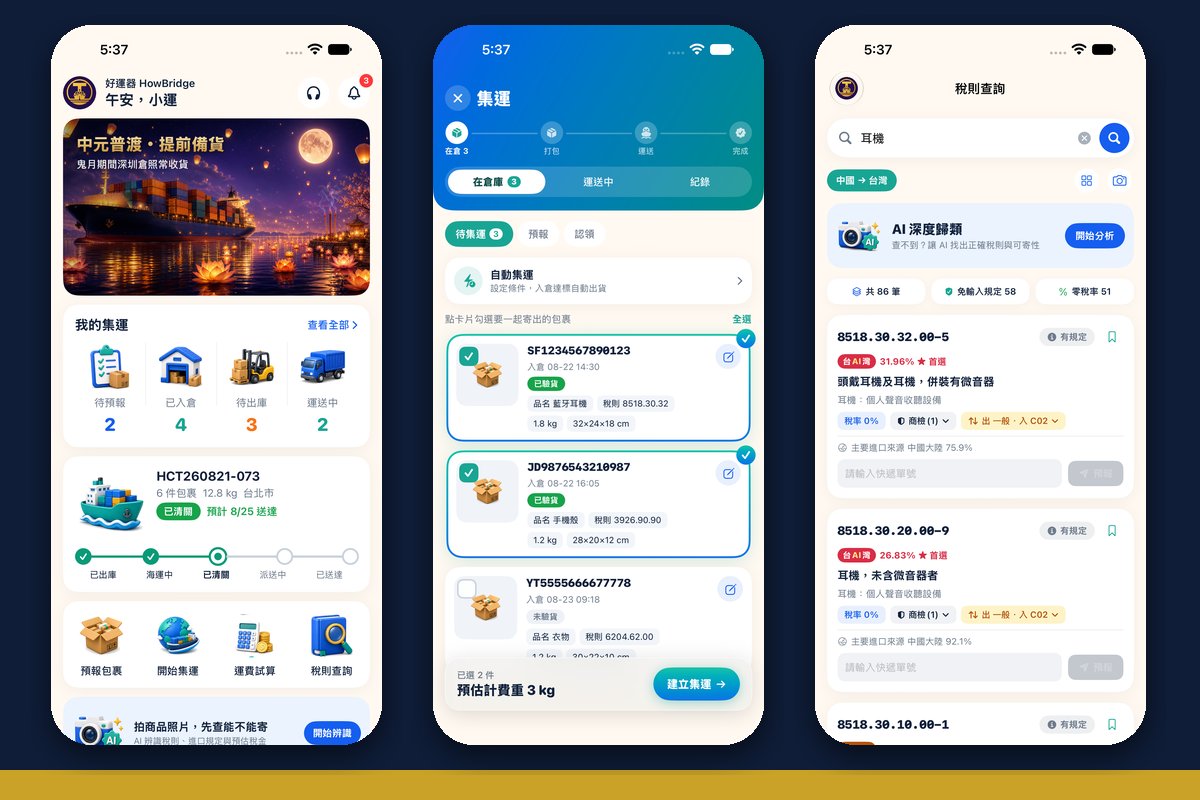
| Tab | Main content | Login required? |
|---|---|---|
| Home | At the top is a promotions carousel (scheduled by our team); “My shipments” four-box stats: To forecast, In warehouse, To dispatch, In transit; a five-stage timeline for the latest batch of master shipments in transit; four quick actions: Forecast, Consolidate, Estimate, Tariffs; the “Snap a product photo to check if it can ship” AI-recognition banner; unpaid bills and the Shenzhen warehouse address card (one tap copies the four-line address with your personal warehouse code appended automatically); the bell in the top-right corner is the notification centre. | Yes for shipment status and the address |
| Bills | Four sub-tabs: Unpaid bills / Paid history / Tax documents / HCT collection; bill details, currency switching, tax-bill and declaration downloads (single file or ZIP, preview in the app then share), freight e-invoices, customs-stage timeline, and “Pay now”. | Yes; if you are not logged in you are taken to the login page first |
| Shipments | A three-part journey “Warehouse → In transit → Records” containing seven lists: To consolidate, Packing, In transit, Forecast, Claim, History and Fees; tick parcels to create a shipment, edit parcel details, view warehouse photos, four value-added service work orders, auto-consolidation settings and the multi-item estimate. | Yes |
| HScode | Tariff search with autocomplete, AI deep classification, photo-based product recognition, browse by category (chapter → heading → subheading), tariff details (duty rates, ECFA, import regulations, inspection items), the “How to import into Taiwan” import guide, saved tariffs, and the freight estimate. | No (saving tariffs and forecasting directly from a result card do require login) |
| Me | Membership tier and stats, daily check-in and points centre, declarant management, recipient management, saved tariffs, customs document centre, account security (two-factor authentication, trusted devices, linked accounts, password, passkeys, Face ID quick login, change email, delete account), language (14 options), log out. | Yes |
The address card on Home, the Siri shortcut “Copy Warehouse Address” and the “Warehouse address” control in Control Center all copy the same four lines of text (recipient, phone, postcode, address), and your personal warehouse code (for example “-H1644J库位”) is appended to the end of the address automatically. The warehouse uses this code to match parcels to your account, so please do not delete or edit it.
How do I forecast parcels and track shipments in the app?
A forecast is “telling the warehouse in advance that this tracking number is yours”; shipment status is the state of the parcel at each stop after it enters the warehouse. Both come from the same data source as the website's consolidation page.
Forecast: paste the tracking number, or read it from a photo
Tap “Forecast” on Home or the Forecast list on the Shipments tab, paste the courier tracking number, enter the product name and quantity, and optionally add a tariff code and total price. After you copy a tracking number from Taobao or Pinduoduo and return to the app, the app detects that the clipboard “looks like it contains a tracking number” and prompts you to paste (it does not read the clipboard automatically; it reads only when you tap the system paste button). “Read tracking numbers from images” lets you pick up to 200 images from your photo library at once, choose a ZIP archive, or take a photo directly; the app downsizes the images and sends them one by one to the server for recognition (recognition happens on the server, not on the phone), then you tick and correct the results and create a forecast for each one; closing the window does not discard the batch already recognised.
Shipment status: five-stage timeline and customs stages
The master shipment card on Home and the In transit list on the Shipments tab show each consolidated shipment on a five-stage timeline: Dispatched → At sea → Cleared customs → Delivering → Delivered (batches not yet dispatched are shown fully grey). Master shipment cards in transit also show the name of the customs clearance stage, the expected clearance date and the details of each sub-shipment. The “My shipments” four-box stats (To forecast, In warehouse, To dispatch, In transit) correspond to the lists on the Shipments tab.
Notification centre and claiming
The bell in the top-right corner of Home is the notification centre: personal notifications and site announcements are merged into a single timeline (up to 20 items), which you can mark as read; links inside a notification open the corresponding page in the app. Parcels received by the warehouse that cannot be matched to an account appear in the “Claim” list on the Shipments tab; follow the prompts to claim them.
The app has seven built-in shortcut actions: Copy Warehouse Address, Forecast a Parcel, Track Shipment (can report directly in the background), View Bills, Check Amount Due, View Shipment and Search Tariffs; two controls, “Forecast” and “Warehouse address”, can be added to Control Center; and Spotlight lists four app actions: forecast, track shipment, tariffs and bills.
Which notifications does the app push? What is the Live Activity on the Lock Screen?
Once you log in and allow notifications, this device becomes a push target. HowBridge notifications use a “single-channel chain”: if you have the app installed and the push is delivered successfully, only the app is notified; LINE is used only if there is no app; email only if there is no LINE either. So for notifications that travel this chain (warehouse arrival, customs release, signed-for, EZ WAY reminders), members with the app will not receive a duplicate on LINE — that is not a missed message. The events currently pushed to the app are:
| Notification | When | Tapping opens | Notes |
|---|---|---|---|
| Parcel received | When your courier tracking number arrives at the Shenzhen consolidation warehouse and is matched to your account | Shipments | Multiple parcels within 90 seconds are merged into one message; deferred during quiet hours |
| Shipment status update | When it enters “Packed”, “In container transit”, “Customs” (clearing) or “Shipping” (out for delivery) | Shipments | The same status for the same parcel is sent only once within 30 days; on devices with Live Activities, “Customs” and “Shipping” are shown by the Live Activity instead and no separate push is sent; deferred during quiet hours |
| Customs release | When the system confirms release from customs | Shipments | Deferred during quiet hours |
| Parcel signed for | When the carrier reports it signed for | Shipments | Deferred during quiet hours |
| New bill | When a shipment is billed | Bills | The same bill is not repeated within 6 hours |
| EZ WAY “declaration matches” reminder | When the customs broker pushes declaration details through EZ WAY and you need to tap “declaration matches” to complete the authorisation | Me | Fixed priority App → LINE → Email; requires action from you |
| Customs hold alert | When a parcel is held at the customs stage and this device has no Live Activity | Me | Sent as an iOS “Time Sensitive” notification; on devices with a Live Activity, the Live Activity switches to an alert instead |
To avoid disturbing you late at night, parcel received, shipment status update, customs release and parcel signed-for notifications between 22:00 and 08:00 Taipei time are held and delivered in the morning; new-bill notifications are pushed immediately and not deferred. The per-person daily notification cap is a rule of the LINE tier; app push itself has no daily cap, but every event is de-duplicated (same status within 30 days, same bill within 6 hours).
When a shipment enters “Customs”, the app starts a “customs stage” Live Activity on the Lock Screen (models with the Dynamic Island also show it there: iPhone 14 Pro/Pro Max and every model from iPhone 15 onwards, except the 16e and 17e), with three nodes: customs → delivery → signed for. When it enters “Shipping”, the customs stage ends and is replaced by the “delivery stage”; after it is signed for, a completed style is shown and it disappears automatically after 30 minutes. If customs needs you to complete EZ WAY identity verification first, the Live Activity turns into an alert colour and shows a “Complete EZ Way verification” button, which opens the app's “Me” tab. The Live Activity never shows personal data such as the recipient's name or address, and it is not started again for the same parcel within 30 days.
The app offers four widgets: small (number of parcels to forecast), medium (progress bar of the latest master shipment plus counts of parcels to consolidate, in transit and awaiting payment), and two Lock Screen widgets, a one-line text and a rectangular one. Widget data is a snapshot written when the app is opened and shows “updated X ago”; it is refreshed only when you open the app, and if it has never synced it shows “Open the app to sync tracking”.
How do I consolidate and ship parcels inside the app? Are the rules the same as on the website?
The rules are exactly the same, because the app and the website call the same backend: any error the website blocks, the app blocks too; the only difference is the interface. The flow is: Shipments tab “Warehouse” → tick parcels in the To consolidate list (tap anywhere on a card to select it; you can search by tracking number, filter by checked status and switch warehouse) → see “N selected · Est. billable weight” → tap “Create shipment” and fill in the form → submit.
| Field | Options | Rules |
|---|---|---|
| Declarant | Personal (national ID number) or company (business tax ID) | Company/business declarants cannot use “Tax+” and cannot use convenience-store pickup; the app corrects these automatically when you switch declarant |
| Recipient | Home delivery, 7-11 or FamilyMart (can be added inside the app: for home delivery enter county/city → district → address with a Google Street View preview; for convenience stores use the three-level county/city → district → store menu) | Store-pickup bags are limited to 5 kg; if overweight, that recipient is locked; store pickup always uses simplified declaration |
| Shipping method | Sea express, Air express | The app offers only sea express and air express; traditional sea freight (quote-based) must be arranged on the website |
| Total goods value | In New Taiwan dollars, required | If it exceeds NT$50,000 and simplified declaration is still selected, you are given two choices before submitting: “Reselect parcels and ship the rest another day” or “I accept the risk and submit with simplified declaration” (since App 1.8, from 2026-09-17, it is no longer switched to formal customs declaration automatically); below NT$800 only “Tax+” or “HCT collects on delivery” is available |
| Declaration type | Simplified declaration (no documents needed) / Formal customs declaration | Formal customs declaration requires uploading a packing list + commercial invoice and a power of attorney (reviewed on upload: approved/returned/manual), home delivery only, and the customs fee is returned by the backend; store pickup is locked to simplified declaration |
| Tax collection method | Tax+ (default, must be ticked to confirm) / HCT collects on delivery NT$30 / HowBridge pays on your behalf NT$40 | Tax+ = the higher of “billable net weight in kg × NT$20” and “total goods value × 5%”, with a minimum of 1 kg; Tax+ is not available for formal customs declaration |
| Packing services | Determined by the backend price list (for example wooden crate, outer box reinforcement, waterproof bag) | The price shown is the basic quote (“from” price) |
| Notes | Free text | Printed on the pick list for the warehouse |
For each parcel awaiting consolidation you can request four kinds of work order: photos, counting, barcode labels and return to seller. Work-order details, history and completion notices are viewable in the app; payment of work-order fees opens a web page to complete.
“Auto consolidation” lets you set a shipment to be created automatically once a weight, a number of parcels or a number of days in the warehouse is reached (home delivery only). The “Multi-item estimate” takes up to 20 rows of parcel dimensions and weights, compares sea express and air express after bagging and flags oversize bag by bag; quotes can be saved, shared or converted directly into a forecast.
How do I use HScode tariff search and the freight estimate? Can I use them without logging in?
Every search feature on the HScode tab works without logging in, and the data comes from the same source as the website's tariff search.
Look up tariffs: search, AI classification, photos
Type a product name and suggestions appear in real time; if nothing matches, tap “AI deep classification” to let the AI infer the tariff code from the product name (up to 10 times per minute); you can also pick a product photo from your library, which the app downsizes and sends to the server to be recognised as text and then searched. The result card shows the duty rate, import regulations and shippability; tapping through to the tariff details shows the two-column duty rates, ECFA, import regulations, inspection items and the “How to import into Taiwan” guide (official warnings are reproduced verbatim). Browse by category lets you drill down chapter → heading → subheading. Shippability comes before duty rates: both the app and the website first tell you whether it can be shipped, then talk about tax.
Freight estimate: fill in 4 fields and get a price
The first screen has just 4 fields — length, width, height (cm) and weight (kg) — and once they are filled in it automatically shows sea express and air express side by side (including oversize fees); it asks you to choose a delivery county/city only when the dimensions count as oversize. To estimate tax as well, continue down: enter the total product value → enter the product name → pick one of 5 similar tariff codes (the first is marked “AI pick”, none is pre-selected) → it shows import duty, commodity tax and VAT, and only at the very bottom the “Estimated total (shipping + tax)”. A customs value of NT$2,000 or below only adds a note and is not automatically treated as duty-free; the estimate excludes insurance. The web version is on the freight estimate page.
How do I view bills and pay inside the app?
The Bills tab has four sub-tabs: Unpaid bills, Paid history, Tax documents and HCT collection; the app automatically lands on the most relevant one based on the records under your name. For each bill you can switch currency, download the tax bill and declaration (single file or ZIP, preview in the app then share) and view the customs-stage timeline; “Tax documents” also lists freight e-invoices (invoice number, carrier, status, proof-copy download).
| Payment method | Where | Notes |
|---|---|---|
| Apple Pay | The payment bar on the bill page (native button) | Appears only if the device's Wallet has a usable card; supports Visa, Mastercard and JCB; the amount is recalculated by the backend before authorisation, and you return to the bill automatically after payment |
| Credit card, ATM transfer, convenience-store code, LINE Pay, etc. | “Pay now” → the web checkout opened inside the app | Same checkout as the website's bill page; Apple Pay does not appear in the web checkout (use the native button in the row above); ATM virtual account and convenience-store code payment details are provided by the checkout page, and the app itself does not send separate due-date reminders |
| E-invoice details | The invoice panel before payment | Five options — mobile barcode, paper, citizen digital certificate, business tax ID, donation — identical to the website; your preference can be remembered |
HowBridge will never ask you via a notification, LINE or private message to transfer money to a personal account; freight and tax payments inside the app all start from the Bills tab, and value-added service work-order fees open this site's payment web page from the work-order screen on the Shipments tab. For a full explanation of payment methods and fees see Payment Methods Overview.
What are the login options? How do Face ID, passkeys and account deletion work?
The app account is the same member account as the website; wherever you log in, you see the same parcels and bills.
| Feature | How to use it | Note |
|---|---|---|
| Social login | At the top of the login page: Apple, Google, LINE, Facebook, etc. | Opens a system sign-in window to 0523.tw to complete authorisation, then returns to the app; with Apple you can choose to hide your email |
| Password and verification-code login | Email or phone + password (with Remember me); or a six-digit email code | Forgotten passwords can be reset in three steps inside the app |
| Face ID/Touch ID quick login | Once enabled under “Me → Account security → Face ID quick login”, log out and scan your face to log back in | Only for password accounts; not available for social-login accounts. Credentials are stored in the device Keychain and are never uploaded |
| Passkey | “Log in with Passkey” on the login page; after a password login, iOS 18 creates one for you seamlessly | The passkey is bound to 0523.tw and synced by iCloud Keychain, so there is no password to be phished |
| Two-factor authentication and trusted devices | Under “Account security” set up email two-factor authentication, manage trusted devices, linked accounts and change password | Once enabled, sensitive actions such as deleting the account require re-verification first |
| Change email | “Account security → Change email” | Password accounts go through the password flow; social accounts go through the verification-code flow |
| Delete account | “Account security → Delete account”, enter your password and type DELETE to confirm | Completed entirely inside the app, no email needed; customs and voucher records that the law requires us to keep are archived under the privacy policy (see the personal-data section below) |
| Language | “Me → Language”, 14 options | Defaults to the iOS system language (Simplified Chinese falls back to Traditional); after switching, web pages inside the app switch too |
What is different in the iPad version?
The same app switches automatically to a tablet layout on iPad (iPad supported since 15 September 2026) and requires iPadOS 18.0 or later:
Layout
The tab bar moves to the top of the screen and can be switched to a sidebar; on wide screens Home becomes a two-column dashboard (promotions carousel and stats side by side); the Bills, Shipments, HScode and Me tabs become multi-column (Shipments has three: journey → list → details), while single-column content is centred with a limited reading width; both portrait and landscape are supported, and you can use Split View with other apps.
Keyboard shortcuts
With a keyboard attached: ⌘N creates a shipment, ⇧⌘N adds a forecast, ⌘1 to ⌘5 switch between the five tabs, ⌘F opens tariff search; hold ⌘ to list all shortcuts.
Not done yet
There is currently no dark mode (the app is fixed to a light appearance); Mac and Apple Vision Pro are not supported; some pop-up windows are not yet optimised for large screens, and later versions will keep filling in the gaps.
Which permissions does the app request and which data does it collect?
Under Article 8 of the Personal Data Protection Act, when personal data is collected, the purpose, categories, manner of use and the data subject's rights must be disclosed; the “App Privacy” label on the App Store page and this site's privacy policy are the formal statements. Below are the permissions and data the app actually touches:
| Permission/data | When it is used | Purpose | What you can do |
|---|---|---|---|
| Notifications | Requested after successful login | Shipment status, bills, EZ WAY reminder pushes and Live Activities | Turn off any time in iOS “Settings → HowBridge → Notifications”; logging out cancels push for this device |
| Camera | When photographing tracking numbers, uploading product photos or customs attachments | Activated only when you tap to take a photo; if not authorised, the app prompts you to open Settings | You can authorise Photos only and not the camera |
| Photos | When picking images to read tracking numbers, choosing product photos or saving downloaded customs documents | Reads the images you select; saves PDFs/images to your library | You can limit the scope with “Selected Photos” |
| Face ID | When enabling “Face ID quick login” | After the face scan, logs in with the credentials in the Keychain; face data is kept on the device by iOS and the app cannot access it | Turn it off under “Account security” |
| Clipboard | When returning to HowBridge from another app | Only detects “whether it looks like a tracking number” without reading the content; it reads only when you tap the system paste button | If you don't paste, nothing is read |
| Member data | After login | App Store privacy label “Data Linked to You”: Purchases (purchase history), Contact Info (physical address, email address, name, phone number), User Content (photos or videos), Identifiers (user ID, device ID), for the purpose of “App Functionality”; the store page notes “This information has not been verified by Apple” | You can delete your account inside the app |
The app's privacy manifest declares no tracking (NSPrivacyTracking = false); there are no advertising or third-party analytics SDKs, and the App Store privacy label has no “Data Used to Track You” entry. After you delete your account, the customs documents (5 years) and accounting vouchers (7 years) that the law requires us to keep are archived and no longer used; everything else is handled under Section 14 of the privacy policy.
Why am I not getting notifications? Why doesn't the Live Activity or widget appear?
Almost every cause of missing notifications is in the table below; work through it from top to bottom:
| Situation | Cause | What to do |
|---|---|---|
| Never asked whether to allow notifications after installing | The app only asks after a successful login | Agree after logging in; if you tapped Don't Allow at the time, turn it on in iOS “Settings → HowBridge → Notifications” |
| Nothing on LINE, only the app | Single-channel chain: if the app is installed and the push succeeds, only the app is notified | This is by design, not a missed message; you can check shipment status any time in the app or by typing “貨況” on LINE |
| No notifications between 10 pm and 8 am | Quiet hours: parcel received, shipment status update, customs release and signed-for notifications are deferred | Delivered after 8 am; new bills are not deferred |
| Only got the same status for the same parcel once | 30-day de-duplication | Normal; just check the Shipments tab |
| Live Activity doesn't appear | It only starts during the “Customs → Shipping → signed for” stretch; requires iOS “Settings → HowBridge → Live Activities” to be on; not repeated for the same parcel within 30 days | Check the setting; if held at customs it turns into an alert with “Complete EZ Way verification” |
| Widget keeps showing old data or “Open the app to sync tracking” | Widgets refresh their snapshot only when you open the app | Open the app once to refresh |
| Can't find “好運器” (HowBridge) on the App Store | Your Apple Account's country or region is not Taiwan; or the device is below iOS 18/iPadOS 18 | Switch your Apple Account's country or region to Taiwan by following Apple's instructions; update the system or use the website instead |
| Notifications stopped after logging out | On logout the app asks the server to revoke this device's push token | Log in again to restore them |
| No notifications after changing phones | The push token is bound to the device | Log in on the new phone and allow notifications |
What are the app's current limitations?
The following reflects App 1.9 as of 20 September 2026; this page will be updated as future versions ship:
| Limitation | Reason | Workaround |
|---|---|---|
| No dark mode | The app is fixed to a light appearance | — |
| Apple Pay only via the native button on the bill page; not in the web checkout | The web checkout inside the app cannot invoke Apple Pay | Use the Apple Pay button in the bill page's payment bar, or use a credit card or LINE Pay instead |
| For JKOPAY, pay on the website | JKOPAY officially launched on the website checkout on September 23, 2026; the in-app payment flow has not yet been confirmed for this page | Open your bill on 0523.tw in a browser and choose JKOPAY, or use another payment method in the app |
| Only sea express and air express shipping methods | Traditional sea freight is a quote-based process | Arrange it on the website's consolidation page |
| EZ WAY verification status is not shown under “Me” | Not yet integrated in the app | Check in the EZ WAY app; the reminder push tells you exactly what to do, and the tutorial is at EZ WAY Tutorial |
| Home Screen widgets do not refresh automatically | iOS 26 push-based widget updates are not yet enabled | Open the app to refresh |
| Work-order payment, some full announcements and points history still open web pages | Not yet native | The app opens the corresponding web page directly |
| Not available for Mac or Apple Vision Pro | Not published on those two platforms | Use an iPad or the website |
| No per-category notification switches inside the app | Only the iOS system notification switch | Use the overall switch in iOS Settings |
Glossary
- Push notification
- A notification delivered to the device by the Apple Push Notification service (APNs); HowBridge registers this device as a push target after you log in and allow notifications, and unregisters it when you log out.
- Live Activities
- An iOS Lock Screen feature that keeps an ongoing event visible on the Lock Screen and in the Dynamic Island. HowBridge uses it to show the three nodes customs → delivery → signed for, switching to an alert when the parcel is held.
- Dynamic Island
- The interactive area at the top of the screen on iPhone 14 Pro/Pro Max and every model from iPhone 15 onwards (except the 16e and 17e), where Live Activities are shown in compact form.
- Widget
- A small panel placed on the Home Screen or Lock Screen. HowBridge offers four, including the number of parcels to forecast and the progress of the latest master shipment; the data is refreshed when you open the app.
- Passkey
- A login method that replaces the password with Face ID/Touch ID; the key is bound to the 0523.tw domain and synced by iCloud Keychain, so a phishing site cannot steal it.
- Face ID quick login
- A HowBridge app feature: your account password is stored in the device Keychain and you are logged in automatically after a face scan; only for password accounts. Face data is managed by iOS and the app cannot access it.
- Sign in with Apple
- Apple's login method, which lets you hide your real email; HowBridge completes it through the 0523.tw authorisation page, and after login it is the same member account as on the website.
- Universal Links
- When you tap a 0523.tw bill, shipment or tariff URL, iOS opens the corresponding page in the HowBridge app directly instead of the browser.
- Single-channel chain
- This site's delivery principle for automatic notifications: app push → LINE → email, sent only to the first available channel so you don't receive the same thing three times.
- Quiet hours
- This site's notification policy: between 22:00 and 08:00 Taipei time, informational notifications such as parcel received, shipment status updates, customs release and parcel signed for are held and delivered in the morning; notifications that require action from you are not affected.
- Warehouse code
- The personal code at the end of the Shenzhen warehouse delivery address (for example “-H1644J库位”), which the warehouse uses to match parcels to your account; keep it intact when copying the address.
- Tax+
- One of this site's tax collection methods: when you submit a shipment, an estimated tax equal to the higher of “billable net weight in kg × NT$20” and “total goods value × 5%” is bundled into the freight, with a minimum of 1 kg; convenience-store pickup can only use this method, and it is not available to company declarants.
- Simplified declaration and formal customs declaration
- Under certain conditions, express consignments can clear customs on a simplified declaration form (this site uses a total goods value of NT$50,000 as the reminder threshold); formal customs declaration is filed on a regular import declaration, and in the app you can upload the packing list, commercial invoice and power of attorney for instant review.
- EZ WAY “declaration matches”
- The online customs-authorisation app “EZ WAY” built and operated by Trade-Van, one of the three authorisation methods (not mandated by law). After the customs broker pushes the declaration details, you check them and tap “declaration matches” to complete the authorisation; HowBridge sends an app push to remind you.
- HScode (tariff code)
- The 11-digit tariff code used to classify imported goods, which determines the duty rate and import regulations; the app's HScode tab lets you search, use AI classification and photo recognition without logging in.
Sources and limits of verification
The feature rules on this page were checked item by item against the App 1.9 code and the backend notification service (2026-09-20); store information is taken from the App Store and Google Play pages, iOS feature descriptions from Apple's official support and developer documentation, and legal provisions from the current text in the Laws & Regulations Database, supplemented by peer-reviewed literature explaining “why it is designed this way”.
Apple/Google official documents and legal basis
- Apple Support, “Download apps on your iPhone or iPad” (2026-02-05): “On your iPhone or iPad, open the App Store.” “Tap the price or the Get button.” “If you use Face ID or Touch ID to unlock your device, you will look at the device or touch the Home button to authenticate the download. You might need to enter your Apple Account password to complete the download.” See also “If you can't download or update apps on your iPhone or iPad”: “You might need to have a valid payment method on file, even if the app is available for free”.
- Apple Support, “How to create a new Apple Account” (2026-09-15) + “Change the country or region of your Apple Account” (2026-04-15): downloading apps requires an Apple Account; when creating one you “set your country or region and set up two-factor authentication”; the App Store storefront follows the account's region, and before changing it “you must spend your account balance and cancel your subscriptions”. The HowBridge app is published on the Taiwan App Store.
- iPhone User Guide, “iPhone models compatible with iOS 18”: iOS 18 supports iPhone XR, XS, XS Max, the iPhone 11 series, iPhone SE (2nd generation) and later up to the iPhone 16 series and 16e, 29 models in total; iPad User Guide, “iPad models compatible with iPadOS 18”: the oldest are iPad mini (5th generation), iPad (7th generation), iPad Air (3rd generation) and iPad Pro 11-inch (1st generation)/12.9-inch (3rd generation). The current iOS 27 compatible models start from iPhone 11 — iPhone XR/XS, which stop at iOS 18, can still install the HowBridge app. The update path is in “How to download iOS 18”: “Settings” → “General” → “Software Update”.
- Apple Support, “Use notifications on your iPhone or iPad” (2026-09-17) + iPhone User Guide, “Change notification settings”: “Tap ‘Notifications’, then tap the app under ‘Notification Style’.” “Turn off notifications for an app: turn off ‘Allow Notifications’.” “To show notification content on the Lock Screen without unlocking the device… tap ‘Show Previews’, then select ‘Always’.”
- iPhone User Guide, “View and control Live Activities on the Lock Screen”: “You can view app activities on the Lock Screen to keep track of progress easily. For example, a navigation route in ‘Maps’, live sports updates in the Apple TV app, order updates in a food delivery app, and so on. These updates are called ‘Live Activities’.” “To change Live Activities settings, go to ‘Settings’, tap Apps, tap the app whose settings you want to change, then tap ‘Live Activities’.”
- iPhone User Guide, “View Live Activities in the Dynamic Island”: “When iPhone is unlocked, you can view notifications and Live Activities at any time in the Dynamic Island on the Home Screen or inside the app you are using”; the models with a Dynamic Island are iPhone 14 Pro/Pro Max and every model from iPhone 15 onwards (except the 16e and 17e); “On iPhone 18 Pro models, the Dynamic Island can show up to three Live Activities at the same time.”
- iPhone User Guide, “Add, edit, and remove widgets on iPhone”: “Widgets let you see current information from an app at a glance”; “Touch and hold the background until the apps begin to jiggle… then tap ‘Add Widget’.” “You can tap a widget on the Home Screen, Lock Screen or in ‘StandBy’ to perform an action.”
- Apple Support, “What is Sign in with Apple?” (2026-05-07): “When you sign in for the first time, apps and websites can only ask for your name and email address to create your account.” “Sign in with Apple does not track you or profile your data as you use your favourite apps and websites.” “How to use Hide My Email with Sign in with Apple”: “Hide My Email generates a unique, random email address, and mail sent to this address is automatically forwarded to your personal email inbox.”
- Apple Support, “About the security of passkeys” (2024-09-27) + iPhone User Guide, “Sign in to websites and apps with passkeys”: “Unlike passwords, passkeys are resistant to phishing” “The server never obtains the content of the private key.” “Like passwords, passkeys are encrypted and stored in your ‘iCloud Keychain’, and no one (including Apple) can see them.” “Note: To use passkeys, ‘iCloud Keychain’ and two-factor authentication must both be turned on.” (Apple's Traditional Chinese pages use one Chinese term for passkeys while the Taiwan iOS interface commonly uses another; the Chinese version of this page follows the interface term and adds the English word “Passkey”.)
- Apple Support, “About Face ID advanced technology” (2024-12-17): “Face ID data does not leave your device and is never backed up to iCloud or anywhere else.” “Apps are notified only as to whether the authentication was successful. Apps cannot access Face ID data associated with the enrolled face.”
- Apple, “App Store Review Guidelines” 5.1.1 and 4.8: “If your app supports account creation, you must also offer account deletion within the app.” “Apps may not require users to enter personal information to function, except when directly relevant to the core functionality of the app or required by law.”; 4.8 requires apps that use third-party or social login to also offer an equivalent login option that requests only name and email, allows the email to be hidden and does not track — Sign in with Apple is that option.
- Apple, “App Privacy Details”: “On each app's product page, users can learn about some of the data types the app may collect, and whether that data is linked to them or used to track them.”; “Tracking” is defined as linking user or device data collected from the app with third-party data for targeted advertising or advertising measurement, or sharing it with data brokers. The HowBridge store page's privacy label has only “Data Linked to You” and notes “This information has not been verified by Apple”.
- Apple Developer, “Allowing apps and websites to link to your content”: “When users tap or click a universal link, the system redirects the link directly to your app without routing through the person's default web browser or your website.” “If the person hasn't installed your app, the system opens the URL in their default web browser”.
- App Store Taiwan, “好運器” (HowBridge) page (read on 2026-09-20): “Version 1.9” (2026-09-18), “Requires iOS 18.0 or later.” “iPad: Requires iPadOS 18.0 or later.”, size 46.9 MB, category Shopping, age rating 4+, free, languages “Chinese (Traditional) and 13 more”, seller Hao Yun Ci Information Limited Company; version history 1.1 (9 September) “Apple Pay payment added to the bill page”, 1.5/1.6 (15 September) “All-new iPad support”, 1.9 “Camera, Photos and Face ID permission descriptions and widget names completed in 14 languages”; “Ratings & Reviews: this app has not received enough ratings or reviews”.
- Google Play, “好運器 HowBridge” page (read on 2026-09-20): developer HowBridge Information Co., Ltd., updated 18 September 2026, version 1.0.17, requires Android 8.0 or later, category Shopping, rated 3+; Data safety “No data shared with third parties”, “Data is encrypted in transit”, “You can request that data be deleted”. Google Play Help, “Data safety”: “Developers use the ‘Data safety’ section to explain how their app handles data.”
- Personal Data Protection Act, Articles 8, 19, 20 and 27 (Laws & Regulations Database): Article 8 requires that when personal data is collected, the name of the entity, the purpose of collection, the categories of data, the period, territory, recipients and manner of use, the data subject's rights and the consequences of not providing the data be clearly disclosed; Article 19(1)(2) “where there is a contractual or quasi-contractual relationship with the data subject” and (5) “with the data subject's consent” are the conditions for collection by non-government entities; Article 20(2) and (3) require marketing to stop once the data subject objects and that the first marketing contact provide a way to object; Article 27 requires appropriate security measures. The amended provisions promulgated on 11 November 2025 (ROC year 114) take effect on a date to be set by the Executive Yuan; this page cites the provisions currently in force.
- Ministry of Digital Affairs, Administration for Digital Industries / Mobile Application Security Alliance, “Basic Security Standards for Mobile Applications” V1.5 (September 2024): “These standards are non-mandatory; their main purpose is to raise the basic security capabilities of mobile apps in Taiwan by introducing basic security concepts from the initial design stage”; they set requirements in seven areas: “mobile app release security”, “sensitive data protection”, “transaction resource control security”, “user identity authentication, authorisation and session management security”, “mobile app code security”, “server-side security management” and “server-side security testing”. “Basic Security Testing Criteria for Mobile Applications” V4.0: “Transmission of any data in plain text is prohibited”, “Check that the mobile app transmits data only over TLS 1.2 or later encryption protocols”, “The mobile app shall obtain the user's consent before collecting sensitive data”. The HowBridge app has not obtained the MAS mark; these standards are cited here only as background on Taiwan's app security requirements and do not mean the app has been submitted for or passed testing under them.
- Regulations Governing Customs Clearance for Air Express Consignments, Article 17 (amended 2026-02-23): customs authorisation may be given in one of three ways — in writing, through the Customs-Port-Trade Single Window, or through the identity verification platform (paragraph 1); “Where the customs authorisation has not been completed by one of the methods in the preceding paragraph and recorded in Customs' clearance information system, Customs may refuse to accept the declaration.” (paragraph 2, effective 2026-03-01). Customs Administration, Ministry of Finance, press release (2026-08-03): “The EZ Way app is only one of the customs authorisation methods; the public may, according to their own needs, choose a paper case-by-case authorisation or a long-term authorisation, and the regulations do not compel the public to use the EZ Way app”. So the app's EZ WAY reminder push is a reminder, not “no release unless you install it”.
- Customs Act, Article 49, paragraph 2 + Ministry of Finance announcement Tai-Cai-Guan-Zi No. 1061018778 of 7 September 2017: imported goods in the same consignment with a customs value of NT$2,000 or less are exempt from customs duty, VAT and commodity tax (except tobacco, alcohol and tariff-quota agricultural products), but this does not apply to frequent importers; Ministry of Finance order Tai-Cai-Guan-Zi No. 1061011007 of 26 May 2017: a taxpayer who uses duty-free release more than 6 times within a half-year is deemed frequent. This is the basis for the app's freight estimate only adding a note for NT$2,000 or below rather than automatically treating it as duty-free.
- TWNIC, “2025 Taiwan Internet Report” summary (surveyed 2025-07-28 to 09-01, 2,142 responses, aged 18 and over): “In mobile internet access, the mobile broadband penetration rate among Taiwan's population reached 87.12%; looking further at mobile network usage, 46.36% of the population currently use 4G and 40.76% use 5G.” Individual internet usage rate 88.75%; mobile-only 18.04%, mixed 68.03%. The report does not give an iOS/Android split.
- Ministry of Digital Affairs press release, “MODA publishes the 2025 Digital Access Survey Report” (2026-01-13): among internet users aged 12 and over, in the past three months 69.6% “searched for product or service information”, 51.0% used “mobile payment” and 44.7% “browsed or downloaded software (apps) other than games” (N=15,142, 2025-05-19 to 07-18). StatCounter mobile operating system traffic share, Taiwan (August 2026): iOS 60.17%, Android 39.82% — a third-party estimate from web traffic, not an official census, for background only.
Research literature: app adoption, notifications, Lock Screen information and login security
App Adoption: The Effect on Purchasing of Customers Who Have Used a Mobile Website Previously
Using transaction data from a Chinese online retailer: customers who had already used the mobile website and then installed the app had higher purchase incidence, frequency and order value than those who did not. Answers “do I still need the app if there is a web version” — the app still adds value for people who were using the web.
Engaging the unengaged customer: The value of a retailer mobile app
Tracked 629 customers who downloaded a retailer's app: customers far from a store and with little prior contact saw the largest purchase uplift (9.5%) after using the app. Consolidation customers never see the warehouse, so the app is the main point of contact.
The Effects of Adopting and Using a Brand's Mobile Application on Customers' Subsequent Purchase Behavior
Propensity score matching + triple differences: installing and continuing to use the app raises subsequent spending, which falls back after abandonment. The app's value lies in “continued use”, which is why this page emphasises notifications, Live Activities and widgets — the features that bring people back.
Mobile App Adoption and Its Differential Impact on Consumer Shopping Behavior
About 16,000 customers: after installing the app, purchase frequency rose, orders were placed earlier and search costs fell, with the biggest uplift among previously infrequent customers. Hence the low download and login barriers (search without logging in, social login).
From Clicks to Continuance
650 users of a Vietnamese mobile logistics service platform: perceived usefulness, ease of use, enjoyment and trust drive “adaptation”, which affects continued use through satisfaction. One of the few continuance studies that looks directly at logistics apps.
Exploring the influential factors of continuance intention to use mobile Apps: Extending the expectation confirmation model
304 questionnaires: the strongest drivers of continuance intention were, in order, satisfaction, habit, performance expectancy and effort expectancy. The design basis for “checking shipment status must be fast with little typing” and “event pushes build a habit”.
Mobile shopping apps adoption and perceived risks: A cross-country perspective utilizing the Unified Theory of Acceptance and Use of Technology
Two consumer groups in India and the US: privacy and security risk was significant in only one country — cross-cultural users (this app has 14 languages) differ in how sensitive they are to privacy concerns, so the purpose of each permission must be spelled out.
Productive, Anxious, Lonely: 24 Hours Without Push Notifications
30 volunteers turned off all notifications for 24 hours: less distracted but anxious and isolated; two years later half had still changed how they manage notifications. Notifications are not all-or-nothing but “which events deserve a push” — this app pushes only shipment status, bills and reminders.
My Phone and Me: Understanding People's Receptivity to Mobile Notifications
20 users, 10,372 real-world notifications: even notifications with important content cause disruption, and how disruptive they feel depends on presentation and the task at hand. Notifications should be short, readable at a glance, and have quiet hours.
Mobile apps in retail: Effect of push notification frequency on app user behavior
A 7-week experiment in a German retail app (17,500 users): each additional non-personalised push per week raised the uninstall rate by 2.50 percentage points. Hence de-duplicating the same event and not pushing promotions.
Large-scale assessment of mobile notifications
Over 40,000 users and nearly 200 million notifications: users value most the notifications about people and events related to themselves. Shipment status, an “event about me”, is what deserves a push.
Enough Is Enough! The Fine Line in Executing Multichannel Relational Communication
Three years of repurchase data: sending through several channels at once amplifies negative reactions. The basis for this site's automatic notifications using a single channel (App → LINE → Email).
"It's Like Being Gone For A Second": Using Subjective Evidence-Based Ethnography to Understand Locked Smartphone Use Among Young Adults
41 young adults, over 200 hours of first-person video: about 25% of 894 phone uses were “Lock Screen checks” without unlocking. Putting shipment status on the Lock Screen (Live Activities) and in widgets lets people know whether they need to act without unlocking.
Diversity in locked and unlocked mobile device usage
1,960 phones, 6.9 million usage sessions: an average of 57 interactions per day, of which only 43% actually unlocked. More than half of interactions stop at the Lock Screen.
Exploring the design space of glanceable feedback for physical activity trackers
Over 70% of activity-tracker use is a roughly 5-second “glance”; glanceable feedback should be abstract, comparable and actionable. The reason widgets and Live Activities abstract progress into the three nodes “customs → delivery → signed for”.
Exploring the Design Space of Glanceable Smartwatch Feedback Displays: Experimental Study
202 participants, 16 watch faces: over-stylised glanceable displays increase reading error, while plain segmented progress is read most accurately. Widgets and Live Activities use a plain progress bar with no fancy animation.
Is FIDO2 the Kingslayer of User Authentication? A Comparative Usability Study of FIDO2 Passwordless Authentication
The first large-scale user study of passwordless FIDO2: users are willing to replace passwords with security keys but worry about loss and account recovery. This app keeps password and verification-code login alongside passkeys.
FIDO2 the Rescue? Platform vs. Roaming Authentication on Smartphones
An 87-person experiment: the phone's built-in biometrics (platform authenticator) is the passwordless form most people accept. The basis for using the iPhone's Face ID/Touch ID as the passkey authenticator.
The password is dead, long live the password – A laboratory study on user perceptions of authentication schemes
41 users hands-on with 12 authentication methods: passwords were preferred most, followed by fingerprint. Biometrics for everyday quick login, with the password kept as a fallback.
Empirical Analysis and Privacy Implications in OAuth-based Single Sign-On Systems
The top 500 websites in five countries and four identity providers (including Apple): the same service asks different providers for different personal data, and the more privacy-friendly option is often listed last. This app puts “Sign in with Apple” first on the login page.
Explanation Beats Context: The Effect of Timing & Rationales on Users' Runtime Permission Decisions
473 participants, 120 variants: whether a permission request “explains the reason” sways the decision more than “when it asks”. The app's camera, Photos and Face ID permissions all carry a purpose description (in 14 languages).
The effect of developer-specified explanations for permission requests on smartphone user behavior
772 iOS users: permission requests with an explanation had a significantly higher approval rate, yet at the time only about 19% of 4,400 apps included one.
Exploring decision making with Android's runtime permission dialogs using in-context surveys
157 people over 6 weeks: users approved 84% of permission requests, mainly based on “whether this app should need this permission”. Hence the camera is requested only when you tap to take a photo (an Android in-context study).
How Are Your Zombie Accounts? Understanding Users' Practices and Expectations on Mobile App Account Deletion
647 survey responses + 20 interviews + hands-on tests of 60 apps: demand for account deletion is high, but entrances buried too deep and overly complex steps make a sizeable share of people give up. This app places Delete account under “Account security” and completes it inside the app.
"It's a scavenger hunt": Usability of Websites' Opt-Out and Data Deletion Choices
A 24-person lab study across 9 websites: deletion and opt-out mechanisms placed on the account settings page are far more usable than those buried in a privacy policy.
ATTention Please! An Investigation of the App Tracking Transparency Permission
59% of tracking-permission prompts in 4,000 iOS apps used misleading or manipulative dark patterns. This app does no cross-app tracking and never shows a tracking-permission prompt.
Explainable Product Classification for Customs
An explainable HS six-digit recommendation model built with the Korea Customs Service: top-3 recommendation accuracy of 93.9% on difficult subheadings. AI tariff classification is an aid that “gives the top candidates plus reasons”, with the final decision by customs — the app's 5 candidates with none pre-selected reflect exactly this positioning.
Multimodal Approach for Harmonized System Code Prediction
Predicting HS codes from product images and text together: top-3 accuracy 93.5%, top-5 98.2%. Photo plus product name is more accurate than typing alone — the basis for the app's “photo tariff lookup”.
Development of novel optical character recognition system to reduce recording time for vital signs and prescriptions: A simulation-based study
38 clinicians compared OCR with manual entry on a phone: OCR made 0 errors out of 1,056 versus 14 out of 1,056 for manual entry, in 18 seconds versus 144. Reading long alphanumeric strings (courier tracking numbers) with the camera makes fewer errors and is much faster than typing; a medical-context study, not logistics.
An empirical study on logistic service quality, customer satisfaction, and cross-border repurchase intention
466 Chinese consumers with cross-border shopping experience: “delivery information service” (β=0.231) significantly raised satisfaction, while “delivery service quality” itself (β=0.057) was not significant. Shipment information sways cross-border customers' satisfaction more than the delivery itself.
The Labor Illusion: How Operational Transparency Increases Perceived Value
Five experiments: showing the “we are working on it for you” process makes people rate the service higher. The psychological mechanism behind the five-stage shipment timeline and Live Activities; not a logistics study.
① This page describes the behaviour of App 1.9 on the date of writing; the app is updated frequently, and differences in newer versions are governed by the App Store “Version History” and the screens inside the app. ② Live Activities, widgets, Face ID and similar features are displayed as iOS decides, and may differ between models and iOS versions. ③ Figures such as quiet hours and de-duplication days are settings chosen by this site, not legal requirements. ④ The literature consists of general mobile app and notification research, not studies specific to consolidation apps, and this is noted where cited.
Frequently asked questions
Is the HowBridge app free? Are there in-app purchases?
Will it run on my iPhone? Which system version do I need?
Is the iPad version just an enlarged iPhone app?
After installing the app I stopped getting shipment notifications on LINE — is that normal?
When will I see the Live Activity on the Lock Screen?
What is different between consolidating in the app and on the website?
Can I use Apple Pay in the app?
Which features can I use without logging in?
Is Face ID login safe? Is my face uploaded?
How do I delete my account?
Does the app secretly read my clipboard?
Is there an app for Android phones too?
Further reading
LINE Official Account Complete Guide: Rich Menu, Consolidation Assistant, Shipment Notifications
Facebook Page and Messenger Complete Guide
Freight estimate
Tariff search
EZ WAY Identity Verification Tutorial
EZ WAY Pre-Authorisation: Complete the Authorisation Before Customs Declaration
Company Imports: VAT, Import Duty and Formal Customs Declaration
Payment Methods Overview
E-Invoice Guide: How Invoices Are Issued After Paying Freight
Complete Guide to Avoiding Cross-Border Shopping Scams
Taiwan Customs Clearance Timeline: How Long Each Stop Takes
Contact Us: Full Official Contact Details and Service Hours
Download the HowBridge app free from the App Store
Look for the developer Hao Yun Ci Information Limited Company — free, with no in-app purchases. Log in, allow notifications, and you'll be told about every stop your parcel makes.
Apple and the Apple logo are trademarks of Apple Inc., registered in the U.S. and other countries and regions. App Store is a service mark of Apple Inc. Google Play and the Google Play logo are trademarks of Google LLC.